27 Ağustos 2014 Çarşamba

How to Display Most Commented Posts in Blogger

One of the best gadgets for your Blogger blog is a popular posts widget for your sidebar. This lets visitors see what your trending posts are right now and encourages them to click on them to read them. This basic widget is just a little too basic, however, for the modern day website visitor. Not only do they want to see your trending posts, but they also want to join the discussions that are happening on your blog. To do that, you'll need a most commented posts widget for Blogger.

Having a customized widget on your site is a lot easier than you might think. In order to have an effective widget, however, you're going to need a few specific things to help you out.

most commented posts widget


Here's What You're Going To Get

There are certain aspects in the design of a most commented posts widget that you should expect. That's why you'll find these specific components with this custom widget:

  • Ordered by popularity. The posts that have the most comments are the most likely to have visitors want to read the post and join in with the conversation. By ordering your posts based on the popularity of them, you'll give each visitor the chance to see what the hype really is about! This lets you have a charted graphic that gives a visitor easy recognition, but also allows you to keep it straight and aligned if you're looking for a cleaner look.
  • Graphic incorporation. Blog posts that have at least one graphic incorporated with them will receive 100% more traffic than posts that have no images at all. For every graphic that you include with a blog post, the more likely you are to get a click! The same is true with your most commented posts widget, so be sure to incorporate graphics that stand out with your design.
  • Descriptions that blend in. The internet today revolves around the value that you can provide each individual user. People don't just click on things because they look visually tempting. They click on them because they promise a level of value that another website like yours isn't able to provide. By having descriptions that blend in, you'll be able to enhance the perceived value that your site can provide. This leads to more clicks!

Related: Add Multi-Colored Popular Posts to Blogger

Add the Most Commented Posts Widget to Blogger

Step 1. Log in to your Blogger account and go to Template, press the "Edit HTML" button.

Step 2. Click anywhere inside the code area and press the CTRL + F keys to open the Blogger' search box. Type the following tag inside it and hit Enter to find it:
</Group>
Step 3. Just below </Group>, add this code:
<Group description="Most Commented" selector=".most-commented">
<Variable name="most.commented.background1" description="background color1" type="color" default="#fa4242" value="#ee377a"/>
<Variable name="most.commented.background2" description="background color2" type="color" default="#ee6107" value="#fcad37"/>
<Variable name="most.commented.background3" description="background color3" type="color" default="#f0f" value="#f8e000"/>
<Variable name="most.commented.background4" description="background color4" type="color" default="#ff0" value="#c7e93d"/>
<Variable name="most.commented.background5" description="background color5" type="color" default="#0ff" value="#5ebded"/>
</Group>

add code to blogger html
Note: if you can't find the </Group> tag, try to find the following tag instead and add the variables just below it:
<b:skin><![CDATA[

Step 4. Now search for the following tag (CTRL + F):
]]></b:skin>
Step 5. And just above it, add this CSS code:
.comment-count {
    padding: 3px 10px;
    background: #fff;
    color: #000;
    font-size: 10px;
    float: right;
}

.most-commented ul {
    padding: 0px !important;
    font-family: Century Gothic, sans-serif;
}

.most-commented ul li {
    list-style-type: none;
    padding: 10px;
    color: #555;
    margin-top: -10px;
}

.most-commented ul li a {
    color: #444;
    font-weight: bold;
    text-decoration: none;
    font-size: 11px;
}

.most-commented ul li img {
    float: left;
    margin: 0px 5px 0px 0px;
    width: 60px;
    height: 60px;
}

.most-commented:nth-child(3n+0) {
    background: $(most.commented.background1);
    width: 100%;
}

.most-commented:nth-child(4n+0) {
    background: $(most.commented.background2);
    width: 95%;
}

.most-commented:nth-child(5n+0) {
    background: $(most.commented.background3);
    width: 90%;
}

.most-commented:nth-child(6n+0) {
    background: $(most.commented.background4);
    width: 85%;
}

.most-commented:nth-child(7n+0) {
    background: $(most.commented.background5);
    width: 80%;
}
Step 6. Save the template.

Now, let's add the Most Commented Posts widget to the Layout of our Blogger blog. Head over to the "Layout" section of your Blogger dashboard and click on the "Add a gadget" link on the right side. From the pop-up window, scroll down the list and select the "HTML/JavaScript" gadget:

blogger html javascript gadget

Copy and paste this script inside the content box:
<script type="text/javascript">
function stripTags(s,n) {
    return s.replace(/<.*?>/ig,"").split(/\s+/).slice(0,n-1).join(" ")
}
function mostcommented(feed) {
    var i;
    for (i = 0; i < feed.count ; i++) {
var postURL = "'" + feed.value.items[i].link + "'";
var postTitle = feed.value.items[i].title;
var postthumbnail = "<img src="+feed.value.items[i].postthumbnail+" />";
var postDescription = feed.value.items[i].postdescription;
var postComments = feed.value.items[i].commentcount;
var postList = '<div class="most-commented"><ul><li><div class="comment-count">' + postComments + "</div>" + postthumbnail + "<a href="+ postURL + '">' + postTitle + "</a>"  + '<p>' +stripTags(postDescription,10)+'...</p>' + '</li></ul></div>';
 document.write(postList);
     }
 }
 </script>
<script src="http://pipes.yahoo.com/pipes/pipe.run?
AddUrlHere=http://helplogger.blogspot.com
&NumberofPosts=5
&_id=2cb5eb603ed55a6264ee1484e5fdd45c
&_callback=mostcommented
&_render=json"
type="text/javascript"></script><span style="font-size: 80%; float:left;"><a href="http://helplogger.blogspot.com/2014/08/most-commented-posts-blogger-widget.html">Add this widget</a></span>
Here, change http://helplogger.blogspot.com with your blog URL. If you want to add more characters to the description, modify the "10" value in red from "postDescription,10".

If you want a more simple look (without the thumbnails and post snippets), add this script instead:
<script type="text/javascript">
function stripTags(s,n)
    {
    return s.replace(/<.*?>/ig,"").split(/\s+/).slice(0,n-1).join(" ")
}
function mostcommented(feed) {
 var i;
 for (i = 0; i < feed.count ; i++)
 {
var postURL = "'" + feed.value.items[i].link + "'";
var postTitle = feed.value.items[i].title;
var postComments = feed.value.items[i].commentcount;
var postList = '<div class="most-commented"><ul><li style="margin-bottom: 10px"><div class="comment-count">' + postComments + "</div>" + "<a href="+ postURL + '">' + postTitle + "</a>"  + '</li></ul></div>';
 document.write(postList);
 }
 }
 </script>
<script src="http://pipes.yahoo.com/pipes/pipe.run?
 AddUrlHere=http://helplogger.blogspot.com
&NumberofPosts=5
&_id=2cb5eb603ed55a6264ee1484e5fdd45c
&_callback=mostcommented
&_render=json"
type="text/javascript"></script>
<span style="font-size: 80%; float:left;"><a href="http://helplogger.blogspot.com/2014/08/most-commented-posts-blogger-widget.html">Add this widget</a></span>
.... and replace http://helplogger.blogspot.com with your address.
To add the "comments" text after the comments number, replace the line in red:
<div class="comment-count">' + postComments + "</div>"
with:
<div class="comment-count">' + postComments + " comments" + "</div>"
Once you have finished adding your own settings, press the "Save" button to enable the gadget in the sidebar of your blog. That's it!

configure html javascript gadget

To change the background colors of the most commented posts, go to "Template" > hit the "Customize" button and navigate to "Advanced" > "Most Commented" tab. Here you can pick 5 different colors by clicking on the color boxes:

blogger template designer

Once you've selected your favorite color scheme, click the "Apply to blog" button to save the changes... and you're done.

Why Use the Most Commented Posts widget?

The basic psychology in every human is that they want to feel like they belong to a community. That's exactly what this customized widget will bring to your site. No matter what content drew a visitor to see your content, this widget will invite them to join the lively parts of your piece of the internet. This helps to build relationships, with you and with other visitors, and this relationship-building engagement is what you need to start having real value.

Take the time to install this most commented posts widget on your site and you'll see for yourself why this is one of the most useful widgets that is available right now. Enjoy ;)

26 Ağustos 2014 Salı

How Firebug Helps You Design Your Blogger Blog

For most bloggers, the idea of adjusting the coding of their blog to improve the user experience is daunting at best and often quite frightening. HTML5, CSS, and other coding elements are their own virtual language and for the average Blogger user looking to update a personal blog, the automatic settings are about as good as it gets. What if there was a better way to code a blog, whether a beginner or a pro, that could be done within the browser itself?

If you're using Firefox or Chrome, then you should also be using Firebug. It allows you to code your website in real time, so you can maximize the UX of your blog in no time at all.

You No Longer Need To Edit Through Blogger!

If you've ever tried to update a Blogger theme through the editing functions of the website, then you know how difficult it can be. You can preview your designs, but you can't save any changes to officially see what is going to happen with your site until you publish the edits. If you've missed just one line of code or forgotten one small element, you're going to have to go back into the editing matrix, find the error, update it again, and repeat until you have a responsive blog once again.

What Firebug allows you to do is see all of those elements that make up a website in real time. Instead of editing and then publishing, you can edit in real time and see updates happen, all without affecting the user experiences of visitors that are coming to your site while you're editing. You can change the fonts, colors, or virtually anything else within the design of the site quickly and see the results of your work as it happens. Don't like it? Just undo your changes.

It's really that easy.

Using Firebug to Customize CSS in Blogger

This guide will show you how to modify the CSS code of a Blogger template. Usually, the Blogger Template CSS style declarations are editable through the style.css file, found between the <b:skin> and </b:skin> tags.

To download Firebug and get more details regarding its powerful features, visit: Firebug for Firefox, or if you are using Chrome, get the Firebug Lite app. I would recommend to use Firefox, which is more complete and quick, but, nevertheless, both work the same.

Once Firebug is installed, a small bug icon will be available in the upper right of your Web browser's address bar. Clicking it, a horizontally split screen will be shown at the bottom of the browser's window. The page will continue to show in the upper half, while the lower half will show the HTML of the current web page.

firebug

To customize any web element from a Blogger template, just click either on the Firebug icon in the toolbar, or the "Inspect Element with Firebug" item in the context menu. Next, click the blue cursor button to Inspect and place the cursor right over the element to customize.

For example, let's say that we want to change the title of the "Blog Archive" gadget. After we clicked the inspect button, mouse over the "Blog Archive" title which will be highlighted as shown in the screenshot below. To change this element, click on it:

inspect element using firebug

Now that we decided which element we want to change, right click on the "Style" panel and select the "Add rule" option:

add CSS rule in firebug

This will give the class or the id of the highlighted element - in our case, the heading of the Blog Archive (#BlogArchive1 > h2). To edit this rule that we just added, click anywhere near the left curly bracket that will open a text box, so that we can type a new CSS declaration:

firebug css declaration

And here comes the fun part. Let's say that we want to make the title red. We will type color and hit Enter, then we will type the color value or the red text and hit Enter. We will also set the set the font size to 20px, text alignment to center (text-align: center) and make the text underlined (text-decoration: underline):

modify blogger css with firebug

The cool thing about Firebug is that when modifying any CSS property, you can see the results directly applied on the page. So, after adding these declarations, we'll see a big red underlined title for our Blog Archive gadget (see in the screenshot above).

To apply this CSS rule on a Blogger template, just select it beginning from the right curly bracket and to the #(id) or .(class) symbol, then right click it and Copy the CSS code.

copy firebug css rule

Before making any change, it's highly recommended to make a backup of your current template. Go to "Template" and click the "Backup/Restore" button on the upper right side. On the same "Template" location, click on the "Customize" button and navigate to "Advanced" > "Add CSS". Paste the CSS rule that you just copied into the CSS box:

add firebug css to blogger template

Click the "Apply to blog" button on the upper right corner to save the changes and view your blog.

Firebug Also Gives You One Distinct Advantage...

One of the best reasons to install Firebug into Chrome or Firefox is that it allows you to emulate some of your favorite website designs quickly and easily. Instead of hiring a web designer to do the work, which could cost you thousands, you can simply start Firebug and see what the CSS styles are for your favorite site. This allows you to create a similar widget.

From there, all you've got to do is change the coding to make the design elements work under the rules of your own custom.css. This means you can make easy design changes to your Blogger blog without having to go through all of the menus and editing functions so that your template can truly be your own. Do you have some work to do? Sure - but Firebug does all of the primary work for you.

All you've got to do is have a creative mind and a few minutes to make changes to the coding design. Whether you've been coding for years or are just starting your first blog, this is definitely the best way to make sure that your visitors have the best experience possible!

Hayatımızda hangisiyiz.?


Kuyu' dan çıkmak için, Yusuf olmak lazım, Dağları delmek için Ferhat, Çölleri geçmek için Mecnun olmak lazım. Peki biz hayatımızda hangisiyiz.? Hangi Aşk bizi nereye götürdü? Hangi sevgi bizi bizden aldı bambaşka yaptı. ?

Bu yaşımıza kadar nelerin peşinde gittik, hangi arayışlar içinde olduk? Ağladık gözyaşlarımızla ıslattık toprağı, terledik terimizle ıslattık havayı ne için? Kimlerin üstüne bastık, kimleri ezdik.. 
Hanlar, hamamlar, katlar, yatlar içinmi? , şan, şöhret, mevki, makam içinmi? 
Kim neyi götürdü giderken, hanların, hamamların burda kalacak, burda kazandığın şanın, şöhretin, burda kalacak öyleyse nedir bu zalimlik, nedir bu zulüm??? 
Kendini büyük zanneden küçük insan...


İlgili Aramalar:

Chamiers, Chennai | India.

I was in Chennai during my India trip this summer. I was meeting two very talented artists at Chamiers.

Chamiers is a store which has the old-world charm of Chennai, while housing contemporary brands within it's beautifully designed walls.

As soon as one enters, on the left is Anokhi with an interesting stone sculpture welcoming you.

Vintage bicycle is part of the window display.

The stairs lead you to the upper level that has a Gift Store and a Cafe.
The walls have line drawn illustrations of bicycles, birdcages, books, mannequins and sewing machines which seem to mirror the many vintage displays.


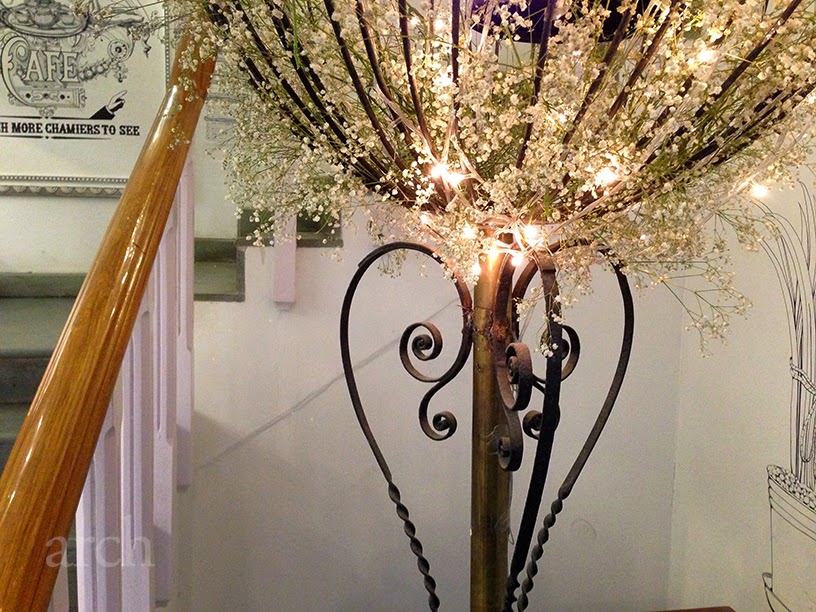
An orb with fairy lights and flowers.


Illustrations of books.

A glimpse of Anokhi through the stairs.

While I was clicking away at the Gift shop I was joined by one of the artists I was meeting:-)

Colourful Gift shop with home decor accessories and quirky products.


Loads of quintessential Chennai products.

We entered the Chamiers Cafe which quickly lured me with it's colour palette and old world charm.
Neatly tied cream curtains standing out against the Mango tree in the backyard.


Vintage black & white studio family portraits formed a gallery wall against a floral wall-paper.


A pleasing colour palette with the cushions matching the patterns on the wall.


Antique knick-knacks placed in a glass cupboard in the cafe.

Delightful old typewriter!

The glow of clusters of ceiling lamps.

More sparking lamps and illustrated birdcages.

Chamiers is the brainchild of Kiran Rao and Mathangi Srinivasamurti. It is located on Chamiers Road
It also houses Amethyst Room, a space for many designers to showcase their work, many pop-up events and trunk shows are held here.

Overall a place to indulge in some retail therapy, surround yourself in block print designs and catch up with friends over a cup of tea while looking out at the mango trees.

Hope you liked the little tour through my lens.

…and stay tuned for the posts on the two talented artist I met here:-)

( Images by Arch and is copyrighted)

25 Ağustos 2014 Pazartesi

Add a Pinterest Pin It Mouseover Button on Blogger Images

Images have always played a prominent role in attracting new visitors through search engines like Google and Bing. But when Pinterest decided to enter the social media mix, it upped the ante in a big way.

Pinterest lets blog owners use their service to add a 'pin' to photos or content images on the site. When visitors of that site see a photo they like, they can choose to click on the red Pinterest button for Blogger, and add it to their Pinterest account.

The person who pressed your Pinterest button for Blogger can now see your photo on their dashboard, and share it with friends or followers on the service. They can also come across this photo when users add keywords or category tags to the image. More importantly, that photo links to your site when clicked on and will contain a description title of your blog name or post.

Therefore, adding the Pinterest button for Blogger will help you to benefit from tons of new traffic coming from Pinterest and people who had found your photos and post links using the service. Here are some steps to add your very own Pinterest button.

1. Access your Blogger Template

The first thing to do is to edit the code of your template so that it knows when to display this Pinterest Button for Blogger with the content. You can do this by logging into your Blogger Dashboard and finding your way to "Template" > "Edit HTML".

blogger template html

When the editor opens up, it may look a bit foreign to you if you don't have much experience using HTML. Click anywhere inside the code area and search by pressing the CTRL + F keys for the </body> tag - hit Enter to find it:
</body>
The body tags makes up the general content in your webpage. Think of it like the settings panel of a website. If you were to delete everything in this section your site would turn into a blank white page.

2. Add The Pinterest Pin it Script

Once you found the </body> tag, insert the following script just above it:
<script>
//<![CDATA[
var custom_pinit_button = "https://blogger.googleusercontent.com/img/b/R29vZ2xl/AVvXsEh77ig8wN_IF7IFwmi7hCflVt2647oPV4JGhyYwN5PikaKSZRIwrmgwtiwQdzhquNqTOqi4Nhnu7efx-Lllisp1qXHvyZN_SgdIpHiGHu1iSkqcdEUaV1pMJdsfX-UGvw-iVUKo8Lo4J84P/s1600/pinit-button.png";
var pinit_button_position = "center";
var pinit_button_before = "";
var pinit_button_after = "";
//]]>
</script>
<script src='http://ajax.googleapis.com/ajax/libs/jquery/1.8.2/jquery.min.js' type='text/javascript'></script>
<script id='pinit-img-button' src='http://helplogger.googlecode.com/svn/trunk/pinterest-button1.js' type='text/javascript'>
// Visit helplogger.blogspot.com for more widgets and tricks.
</script>

adding pinterest script

3. Changing the Position of the Pin it! button

The cool thing about this code is that you have some freedom over where the Pinterest button for Blogger will go over the image. Take a look at the code that you just copied and pasted into the HTML for the word 'center'.
var pinit_button_position = "center";
To move the pin to a different area of the photo, replace center with one of these texts:
topleft
topright
bottomleft
bottomright
And to change the Pin it! button that appears on mouse over, replace the address in blue from above with your own:
var custom_pinit_button = "https://blogger.googleusercontent.com/img/b/R29vZ2xl/AVvXsEh77ig8wN_IF7IFwmi7hCflVt2647oPV4JGhyYwN5PikaKSZRIwrmgwtiwQdzhquNqTOqi4Nhnu7efx-Lllisp1qXHvyZN_SgdIpHiGHu1iSkqcdEUaV1pMJdsfX-UGvw-iVUKo8Lo4J84P/s1600/pinit-button.png";

pinit script

4. Save The Template

Make sure that you added everything correctly, then save the template and navigate to a recent post that you made that contain images. Hover your mouse over the image and you should now see a red Pinterest button for Blogger displayed on the image. Test it out and see it how it works.

If you want to hide the pinit button from a specific image, when you create a post, switch to the HTML tab of your post editor and type class="nopin" right before the closing slash and angle bracket of your image element, like this:

nopin pinterest

The only downside of this button is that it doesn't take the information from your custom image titles. It's automatically set to take the title of the blog post where the image is located. So, you'll need to pay closer attention to the title of the posts so that it fits closely with the images being shown.

Remember that when you have this code activated, you have to label your titles so that they are relevant to the photos you are posting. This might sound obvious, but sometimes you create a post with an image as a joke that won't make sense in the context of viewing it on Pinterest.

If you use Google Analytics, you can start to see traffic flooding into your site from Pinterest. You should also create your own Pinterest account so that you can manage the content and track how it's being shared. That's it. Enjoy and happy blogging!

22 Ağustos 2014 Cuma

Tincan and Kickstep Glaciers

It seems I have made this the summer of tying up loose ends. Years ago before the digital age i bushwacked up to a cool ridge i found on a map that allowed you to walk for miles while looking down into valleys on either side. That was in the fall when the days were short and i had to turn around before i had gone very far. I always wanted to go back, so this summer i did.

If you do an image search for Tincan or Kickstep Mountains you will get a huge cascade of snowy winter imagery. It's a popular heli-ski and backcountry ski destination but apparently nobody ever goes there in summer. Kickstep Mountain is visible sticking up on the East side Turnagain Pass from the parking area. It looks like it's immediately over the hill but that's the clear Alaskan air tricking you, it's actually 5 miles away.
The short trail portion of the hike starts off in nice Kenai forest. It very quickly degrades into bushes, cow parsnip, devils club, and alders.
If you go the wrong way you will soon be forced back in the right direction when you run into the gorge containing Tincan Creek.
Right about where i decided to abandon the "trail" i found this pontoon boat. It's pretty weird to find a boat tied to the side of a mountain. I can only guess that somebody was lowering the pontoons down into the gorge to use as a work platform while they did some gold dredging in the creek.
We emerged from the forest and got our first view of the upper valley ABOVE the pass. Kona sits in semi-tundra scouring for wildlife. In the distance is Kickstep Mountain and a very long wall of rock leading away from it. On top must be a really cool ridge walk. We left the trail quite some time ago and would not see one again the rest of the way.

I don't normally carry bear spray but this hike is about 85% off-trail and the first mile of the off trail portion is through excellent bear terrain. The first time i brought Fisher, and an one point, in the thickest, steepest brush, he started acting spooked. I had a weird feeling too, something just seemed imminently wrong. I avoided that area on this visit. The bushwacking had been horrid anyway, so i was interested in finding a better route.
A strange opening in the forest we took advantage off. It was really cool to go from the forest and transition through so many areas of vegetation, all different, that eventually resulted in typical frost hummocked tussocks and tundra in the back of the valley.
I still cant believe this but i ended up standing in almost exactly the same spot 12 years apart after starting an off-trail hike from two completely different starting positions! And i took the same damn picture! I was not aware of this until weeks afterward i had the idea that it would be neat to see if the glaciers looked any different after 12 years. I had to dig up my slides. That's how long it had been. The top picture is from I THINK 2002, in September. So this second picture is from July 2014. It's not exactly a fair comparison because the first picture is after two more months of melting snow. When i look at these full size, and especially comparing some other pictures i took that were more close up, i can see that the ice has retreated some but thinned out considerably. That is typical of land based glaciers.

Still, to end up in that same location is baffling. There must be something about the terrain and foliage that naturally pushes you towards this specific location. Now, might as well make this even more complicated. The picture immediately below this paragraph was our next area of hiking. We came across a number of dry stream beds and tarns. This is in the picture above. If you look at the rocky mound in the center foreground and look just to the left of the trees you'll see a little open area of yellow and reddish, and that's where i decided would be the best way to go. That's the area below. Looks steeper up close doesn't it? That's the way this entire hike turned out to be.
But back to the beginning. We originally started by following the winter ski trail just past the bridge south of the parking area. That trail, unfortunately peters out in thick alders and marshy cow parsnip. At least, the occasional ribbon i was following became less frequent or did something unexpected. We ended up pushing our way through alders along a cliff. That was exactly what i wanted to not do, so i chose to crawl straight up the mountainside until we were on the forested top. That section in the alders and going up to the top was the hardest part of the trip.
Eventually we passed the zone of high grass and the zone of alders. Just scraggly patches of bushes and trees remained. Kona leads. She was having a great time. She loves wide open areas. 
The valley on our right hand view was starkly different in character.

It had been at least 12 years since i had been there and i had forgotten why i chose my original route so many years ago. I didnt' know about alders back then but i did pay more attention to maps and had craftily avoided the hill that this time i was now on top of. Once on top i soon had to climb back down the other side and it was nearly as steep as the way up. So that seemed like wasted energy. Back up the next hill a pattern began, but with each hilltop the vegetation improved, until i was finally out in the open walking through deep tundra.

I still like the old slides i took.This looked incredibly wild to me back then, and also unreachable for some reason. This was as far as i had gone that first time. In the fall the days are much shorter and based on the shadows i think even today it was probably time to turn around.
Looking back the way we had come showed us that we had gained enough altitude to see over the Turnagain Pass area to the mountains behind it. I had never seen them before. This day of hiking there was a high layer of smoke in the sky that diffused the sunlight.
The valley below looked improbably flat. I was constantly tempted to go down there, but i knew it was a lie. Alaska is one of the biggest liars i've ever known.

It went on like this for several miles, until i made it to the base of the mountains in the back of the valley. I had, of course, started several hours later than i should have, so i was running out of time. Where i was though, was very encouraging. I was staring down at the terminus moraine of Tincan Glacier. The glacier had retreated quickly a great distance up the valley, leaving the valley floor completely covered in lifeless rock fields. The front of the moraine was gushing with numerous waterfalls all up and down it's width, so i wondered if there was ice under the rocks.
Ok, we finally made it to the base of the pyramid, and it was good.
Looking at the view, it seemed like a shame to not keep going and check out that terminal moraine.
Just as i suspected, once i was down in the valley it was much less flat and easy than it had looked, but it was still very pretty.

I still had two hours i could spare, so i decided to go down there and after one more hour, maybe longer, i would return. It was a good choice. The area in front of the moraine was a lush garden of clear streams and scattered fields of flowers. High above, clearly accessible Kickstep Glacier contributed it's own cascading stream to the area. Climbing onto the rocks showed that it wasn't so barren after all. The flowers from below were gaining a foothold around the meandering streams. The valley at that point had a very cool rugged look going on, and i could see that the glacier was so melted and exposed that it looked like you could safely walk all the way to the headwall, which had a metallic sheen.
Kona was extremely thirsty. She's very snobby about what water she will drink and we had passed numerous tarns and small streams that she turned her nose up.
The stream from Kickstep Glacier cascades down the mountain to converge with the stream from Tincan Glacier. Man this place is nice.
A panoramic shot of the area, close to 180 degrees.
An extremely unlikely but perfect camping spot. This is the only flat area i saw anywhere and it happened to be in just the right place.
Also preposterously unlikely? This perfect sidewalk made getting to the moraine super easy.
These "water gardens" created the most pleasant area i've ever encountered directly in front of a glacier. We found a nice place to sit and eat. We relaxed for a long time (for me), but it wasn't enough. I decided you would need to camp to really get everything you could out of it.
We started climbing up the rocks. It was an amazing transition from lush green lifeless rubble, except where flowers grew along the water.
Something is conspicuously missing. Very rugged from here on out, but exciting. It looked fairly easy to walk along the streams but we didn't have enough time. The end of the glacier is now a mile away.


In the rocks i found an old goat skull. It had nearly succumbed to the elements, so i didn't want is as a prize, but i did take it's one remaining tooth. When i got home i showed it to Fisher and he immediately tried to eat it.

A close up of the headwall. On the left of the wall you can see clear bands of rusted iron. There was a ton of quartz around me so i'm guessing the lighter bands of rock are that. The far right wall had a purplish metallic sheen. I really wanted to go check that out. After looking it up i read that there are some interesting minerals in the area, including gold.
As we headed back clouds moved in. Once we were off the tundra and into the bushes conditions were shifting towards mostly overcast. The clouds didn't move in so much as just formed overhead. By the time were getting close to home, it started to rain.

Too bad for my own bad decisions. I had to turn around. The glacier was still a mile away and i had used up and hour and 15 minutes of that 2 two hour grace period. Time flies when you're having fun (or bushwacking). Kona really dislikes boulder fields anyway and she was already letting me know. So we reluctantly turned around.

After all, it was critically important to get back to town before the Taco King closed.

On the way back we tried a couple of different routes. Thought maybe i could avoid the two biggest hills by walking around the sides of them through what looked like fields of flowers. Up close they turned out to be stalky plants, some flowers, but all about 6 feet high and very dense. So i abandoned that idea and went back up the to the top of hill. On the final hill i wanted to avoid the way i came up. We stuck to the top of the biggest hill in the forest, which was somewhat easy to walk through and tried to make our way more south before heading down. We kept getting forced more and more to the south because of cliffs. Eventually i just had to climb down the cliffs in thick forest and brush. There didn't seem to be any other way down, and we still ended up in thick marshy high plants and alders thickets. So the way i started the day seemed like the best route after all. Go figure.
I leave you with ham. Near the beginning of the trail in the woods along the creek i found the remains of an old camp, possibly an old cabin. There was this weird can of ham. I looked into it and it may be as old as the 1970's. The youngest it would be i think is from the early 80's.